AI crawler settings by platform / AI crawlers by platform
WordPress.com: where the AI opt-out sits (a privacy setting, not robots.txt)
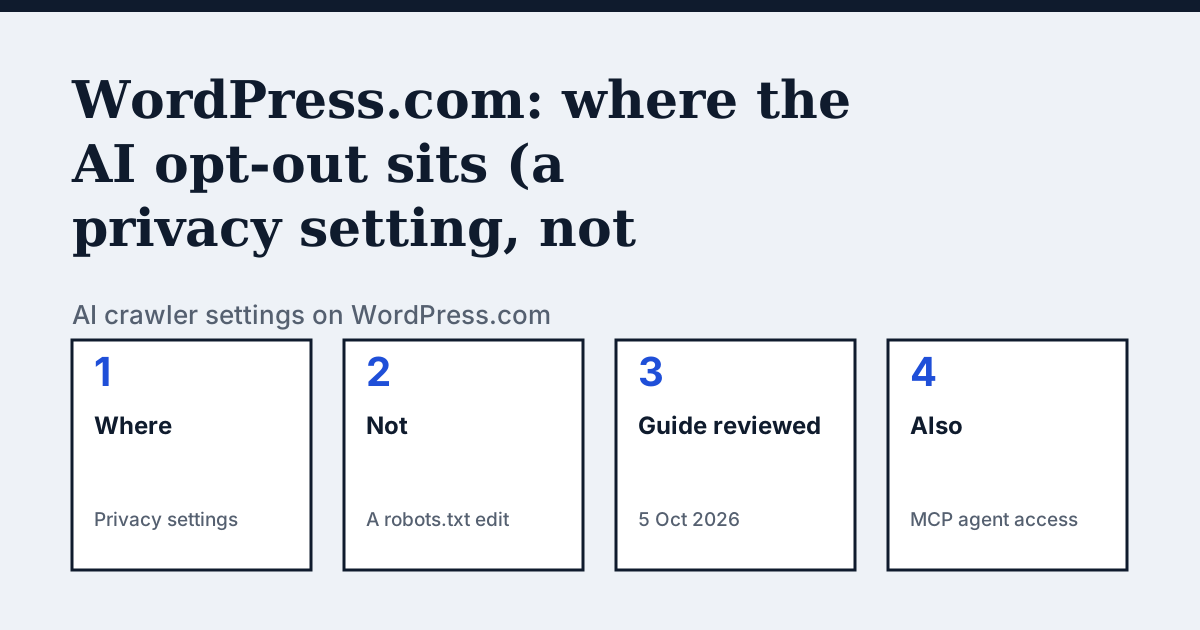
Where the setting is on WordPress.com
WordPress.com's visibility guide sends you to Settings, then Reading, for Site Visibility (Public, Coming Soon or Private), and to a separate Prevent third-party sharing guide for the AI opt-out.
Opting out of AI is a sharing setting here
WordPress.com's guide on controlling your site's visibility says: to opt out of sharing your site's public content with third parties (including AI models), visit the Prevent third-party sharing guide. That is a platform setting, separate from the robots.txt that search and AI crawlers read. The same page, last reviewed on 5 October 2026, also describes the opposite direction: you can connect external AI agents such as ChatGPT or Claude to read and edit your site's visibility settings by enabling MCP tool access. We could not read the body of the Prevent third-party sharing guide on 21 October: the page loaded with its title and a review date of 1 August 2024 but no steps, by a plain fetch and in a browser. So this page does not describe how that setting works; open the guide from your own dashboard. If you run self-hosted WordPress rather than WordPress.com, the file is yours to edit, as on any host.
In the vendor's words: “To opt out of sharing your site's public content with third parties (including AI models), visit the Prevent third-party sharing guide.”
Source: WordPress.com Support: Control your site's visibility, read on 21 October 2026.
The steps
- Open Settings, then Reading, and check Site Visibility is Public if you want crawlers to see the site at all.
- Open WordPress.com's Prevent third-party sharing guide from the privacy settings help and follow it if you want to opt out of sharing content with third parties, including AI models.
- Open yourdomain.com/robots.txt and read what your site actually serves to crawlers.
The lines to use
To allow:
# No edit to make on WordPress.com for the sharing opt-out.
# Check what your site serves:
# https://yourdomain.com/robots.txt
To block:
# On a self-hosted WordPress site, you add lines like these through your SEO plugin or the file:
User-agent: GPTBot
Disallow: /
Gotchas
A Coming Soon or Private site is not the same as an AI opt-out: it hides the site from everyone, search engines included, which is the opposite of what a shop that wants to be cited needs.
Compare with Cloudflare
Cloudflare: A network-level switch that works whatever the site platform is.
Check your own site
The audit box above reads robots.txt for the AI crawlers and sends one live request per crawler, so a rule that your platform's settings allow but a firewall refuses shows up. The full list of crawlers is on the AI crawler hub.
Questions people ask
Is the WordPress.com AI opt-out the same as blocking GPTBot?
WordPress.com describes it as opting out of sharing your public content with third parties, including AI models. It does not describe it as a robots.txt rule, so check your live robots.txt to see what crawlers are told.
Can I edit robots.txt on WordPress.com?
We did not find a robots.txt editor in the visibility guide we read, so we do not say either way. Look in your site's settings for your plan.
What is MCP tool access?
The guide says it lets external AI agents read and edit your site's visibility settings. It is about managing the site, not about crawlers.
Sources
- WordPress.com Support: Control your site's visibility, read 21 October 2026
- WordPress.com Support: Prevent third-party sharing, read 21 October 2026
See what AI answers about your shop
The audit crawls your site up to your plan's page limit, shows which AI crawlers it lets in and gives the exact fix for each issue. From €9, 14-day money-back guarantee.
Audit my siteAudit from €9, paid once. 14-day money-back guarantee.