AI crawler settings by platform / AI crawlers by platform
Adobe Commerce: robots.txt is in Content, Design, Configuration
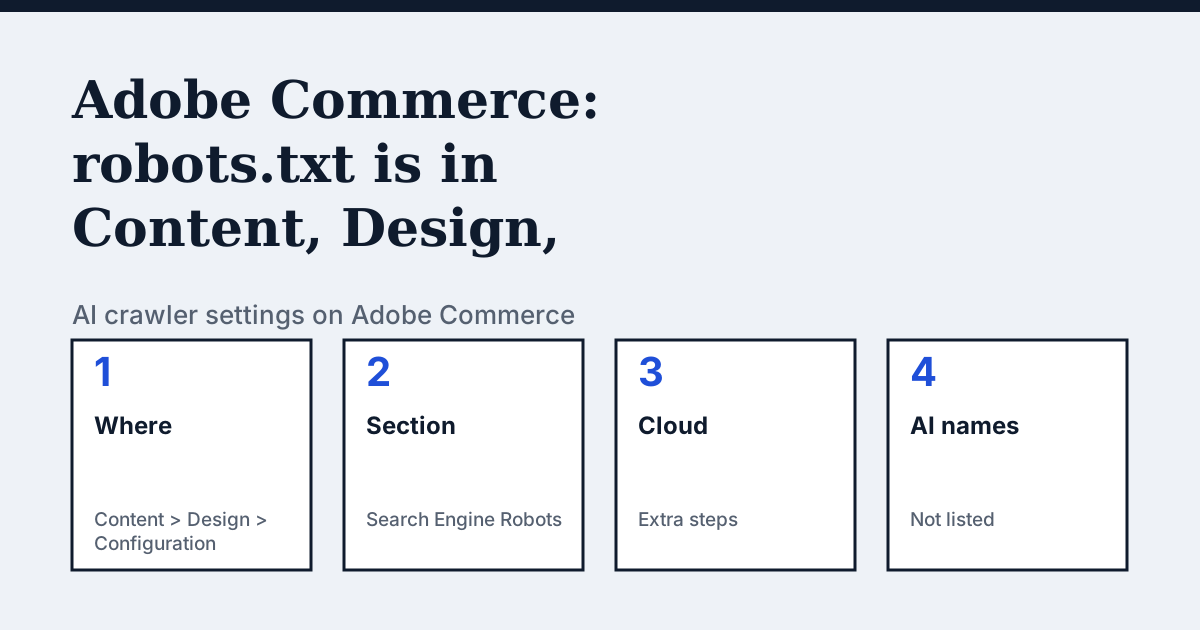
Where the setting is on Adobe Commerce
On the Admin sidebar go to Content, then Design, then Configuration. Adobe's SEO overview says to find the Global configuration in the first row of the grid, click Edit, and expand the Search Engine Robots section. The Edit Custom instruction of robots.txt file box is there, with a Reset to Default button.
The one thing Adobe Commerce's pages say that the other platforms do not
On Adobe Commerce on cloud infrastructure the robots.txt file has a location problem that the other platforms do not have. Adobe's implementation playbook says to add the content in the Admin, but the file system is read-only, so the file has to live under pub/media and a custom Fastly VCL snippet redirects /robots.txt there. For several sites in one project, the playbook names the files per site, for example domainone_robots.txt. For on-premises installs it says to write the files to /path/to/commerce/pub/media/ or /path/to/commerce/media, whichever is right for your installation.
In the vendor's words: “Due to the read-only file system on Adobe Commerce on cloud infrastructure projects, you must specify the pub/media path before generating the file.”
Source: Adobe Commerce Implementation Playbook: Best practices for configuring web crawlers, read on 24 October 2026.
The steps
- On the Admin sidebar go to Content, then Design, then Configuration.
- Find the Global configuration in the first row of the grid and click Edit.
- Scroll down and expand Search Engine Robots.
- Set Default Robots to INDEX, FOLLOW, NOINDEX, FOLLOW, INDEX, NOFOLLOW or NOINDEX, NOFOLLOW. Adobe describes these as instructions to crawlers about indexing and following links.
- If needed, enter your own rules in the Edit Custom instruction of robots.txt file box. Reset to Default restores Adobe's instructions.
- Click Save Configuration, then open your store's /robots.txt to see the result. Adobe's playbook tips that you can view the auto-generated file there.
The lines to use
Adobe's own examples use User-agent: * for all crawlers. To allow or block one named crawler, add a group for its name:
To allow:
User-agent: OAI-SearchBot
Allow: /

User-agent: PerplexityBot
Allow: /
To block:
User-agent: GPTBot
Disallow: /

User-agent: ClaudeBot
Disallow: /
Adobe's pages do not say whether text you type is added to or replaces its default instructions. Save, then read /robots.txt to confirm what is served.
Gotchas
Adobe's playbook says not to expose your Admin path in robots.txt, because that is a vulnerability for site hacking and potential loss of data, and to remove it. Adobe's default instructions start with User-agent: * and a list of Disallow lines such as /checkout/ and /catalog/, so check what you keep. On cloud, a knowledge base article dated 18 August 2026 says robots.txt content is generated from Admin configuration and stored in the database, with no physical file needed in that scenario, while the playbook describes the pub/media redirect. The two pages read differently, so confirm with Adobe Commerce Support which applies to your project. The playbook also says its advice covers the native Adobe Commerce storefront only, not headless or Adobe Experience Manager storefronts.
Compare with Shopify
Shopify: A theme template instead of an Admin box, and Support will not fix edits to it.
Check your own site
The free check in the box above reads robots.txt for the AI crawlers and sends one live request per crawler, so a rule that your platform's settings allow but a firewall refuses shows up. The full list of crawlers is on the AI crawler hub.
Questions people ask
Why does my custom robots.txt not change on Adobe Commerce cloud?
Adobe's knowledge base says the usual cause is that indexing by search engines is disabled, which stops custom robots.txt content being applied. Fix it in the Cloud Console or with the magento-cloud CLI restrict_robots setting. The article adds that Staging environments have indexing disabled by default and it cannot be enabled there.
Does Adobe Commerce list AI crawlers for robots.txt?
Not in the pages we read. They talk about web crawlers and bots, and their examples use User-agent: * only. Add each AI user agent you want to allow or block as its own group.
Sources
- Adobe Commerce Implementation Playbook: Best practices for configuring web crawlers, read 24 October 2026
- Adobe Commerce Admin guide: SEO overview, read 24 October 2026
- Adobe Commerce knowledge base: Resolve robots.txt not updating or displaying default settings, read 24 October 2026
See what AI answers about your shop
The audit crawls your site up to your plan's page limit, shows which AI crawlers it lets in and gives the exact fix for each issue. From €9, 14-day money-back guarantee.
Audit my siteAudit from €9, paid once. 14-day money-back guarantee.