AI crawler settings by platform / AI crawlers by platform
Framer: upload your own robots.txt with Static Files
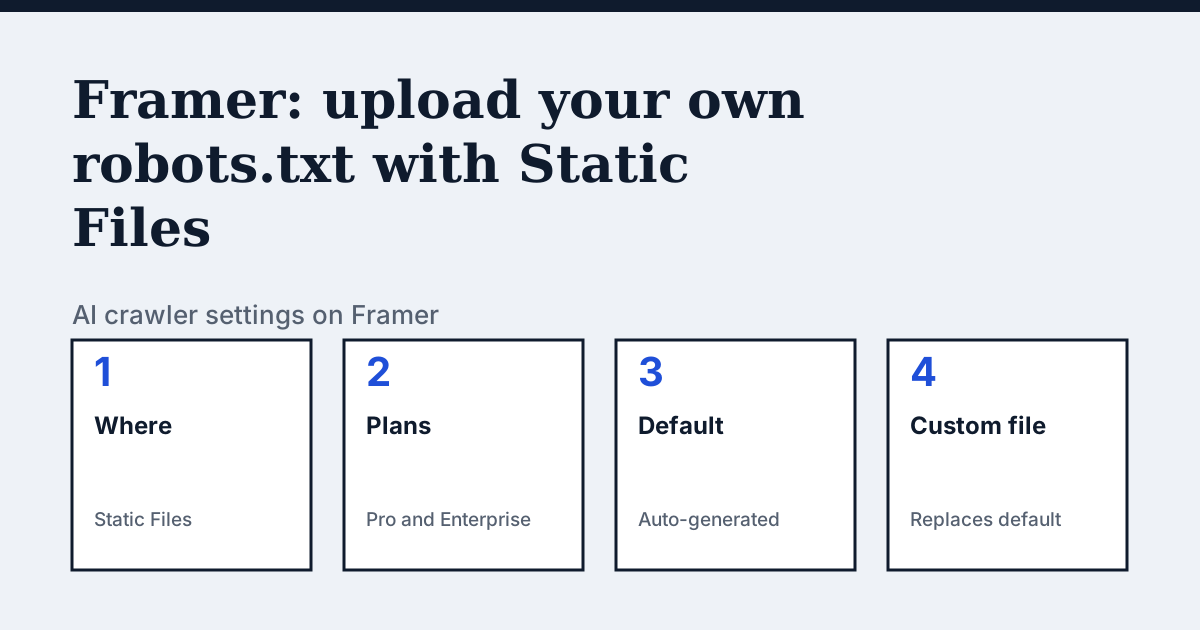
Where the setting is on Framer
In your project dashboard, select your domain, open the Files tab and upload your file with the path set to /. Framer's help page calls this Static Files. To see the live file first, add /robots.txt to your site's domain in a browser.
The one thing Framer's page says that the other platforms do not
Framer gives you no robots.txt editor. The file is generated for you, and the only way to change it is to upload a replacement, which is limited by plan. Framer's page says that if you need a custom robots.txt you can upload one using Static Files, and that the new file replaces the automatically generated one. The plan limit comes straight after.
In the vendor's words: “This is available on Pro and Enterprise plans.”
Source: Framer Help: Access your robots.txt file, read on 24 October 2026.
The steps
- Write your robots.txt as a plain text file on your computer.
- Go to your project dashboard and select your domain.
- Open the Files tab.
- Upload your file with the path set to /.
- Open yourdomain.com/robots.txt in a browser to confirm the live file is yours.
The lines to use
To allow:
User-agent: OAI-SearchBot
Allow: /

User-agent: PerplexityBot
Allow: /
To block:
User-agent: GPTBot
Disallow: /

User-agent: ClaudeBot
Disallow: /
Gotchas
Because your upload replaces the generated file, anything the generated file contained is gone unless you copy it first. Framer's page does not say what the generated file contains, so read yourdomain.com/robots.txt before you upload and keep any lines you want, such as a sitemap line. The page is about robots.txt in general and does not mention AI crawlers by name, so the user agents above are examples to check against each vendor's own page. It was last updated on 15 September 2026.
Compare with Webflow
Webflow: Rules are typed into a settings field rather than uploaded as a file, plus a Content-Signal header.
Check your own site
The free check in the box above reads robots.txt for the AI crawlers and sends one live request per crawler, so a rule that your platform's settings allow but a firewall refuses shows up. The full list of crawlers is on the AI crawler hub.
Questions people ask
Can I edit the robots.txt file in Framer?
Yes, by upload. Framer's page says to open the Files tab for your domain in the project dashboard and upload your file with the path set to /. It says this is available on Pro and Enterprise plans.
Does Framer create a robots.txt automatically?
Yes. Framer's page says it generates a robots.txt file for every published site, and that a custom file uploaded through Static Files replaces the default one.
Sources
- Framer Help: Access your robots.txt file, read 24 October 2026
See what AI answers about your shop
The audit crawls your site up to your plan's page limit, shows which AI crawlers it lets in and gives the exact fix for each issue. From €9, 14-day money-back guarantee.
Audit my siteAudit from €9, paid once. 14-day money-back guarantee.