AI crawler settings by platform / AI crawlers by platform
Ghost: add robots.txt to your theme to allow or block AI crawlers
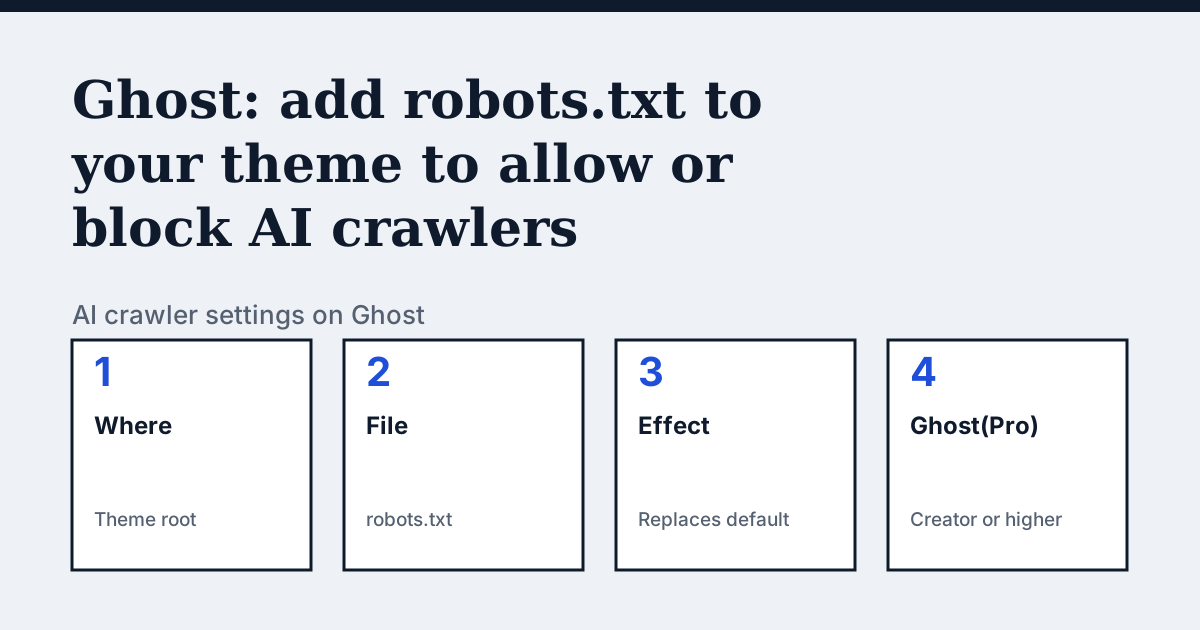
Where the setting is on Ghost
There is no robots.txt field in the admin. Ghost's help page says the file lives inside your site's theme: write your robots.txt and save it to the root of the theme. Ghost's theme documentation says the same in one line: themes can include a robots.txt which overrides the default robots.txt provided by Ghost.
The one thing Ghost's page says that the other platforms do not
On Ghost the file travels with the theme, so the plan you are on decides whether you can change it. Ghost's help page says it requires you to be comfortable writing your own robots.txt and installing a new version of your theme. It then adds a plan limit for Ghost(Pro), Ghost's hosted service: installing a custom theme requires the Creator plan or higher. The page describes what happens next in these terms.
In the vendor's words: “Once the new version of the theme is installed and activated, the theme's robots.txt will be used in place of Ghost's default robots.txt.”
Source: Ghost Help: Modifying robots.txt, read on 24 October 2026.
The steps
- Write your robots.txt file.
- Save it to the root of your theme.
- Install the new version of the theme, then activate it. Ghost says the theme's robots.txt is used in place of its default once the new version is installed and activated.
- On Ghost(Pro), check your plan first: Ghost says installing a custom theme requires the Creator plan or higher.
The lines to use
To allow:
User-agent: OAI-SearchBot
Allow: /

User-agent: PerplexityBot
Allow: /
To block:
User-agent: GPTBot
Disallow: /

User-agent: ClaudeBot
Disallow: /
Gotchas
The theme's file is used in place of Ghost's default, not added to it. Ghost's pages do not say what the default contains, so open yoursite.com/robots.txt before you replace it and copy across any lines you want to keep, such as a sitemap line. The page also warns that this route needs you to be comfortable writing the file yourself, and it does not cover AI crawlers by name.
Compare with WordPress.com
WordPress.com: Its AI opt-out is a sharing setting, not a file you write.
Check your own site
The free check in the box above reads robots.txt for the AI crawlers and sends one live request per crawler, so a rule that your platform's settings allow but a firewall refuses shows up. The full list of crawlers is on the AI crawler hub.
Questions people ask
Where do I put a custom robots.txt on Ghost?
At the root of your theme. Ghost's help page says that once the new theme version is installed and activated, the theme's robots.txt is used in place of Ghost's default.
Do I need a paid plan to edit robots.txt on Ghost(Pro)?
Ghost's page says installing a custom theme on Ghost(Pro) requires a subscription to the Creator plan or higher. Because the file is part of the theme, that applies to a custom robots.txt too.
Sources
- Ghost Help: Modifying robots.txt, read 24 October 2026
- Ghost Docs: Theme structure, read 24 October 2026
See what AI answers about your shop
The audit crawls your site up to your plan's page limit, shows which AI crawlers it lets in and gives the exact fix for each issue. From €9, 14-day money-back guarantee.
Audit my siteAudit from €9, paid once. 14-day money-back guarantee.