AI crawler settings by platform / AI crawlers by platform
WP Engine: robots.txt, 10-second default crawl-delay, Web Rules
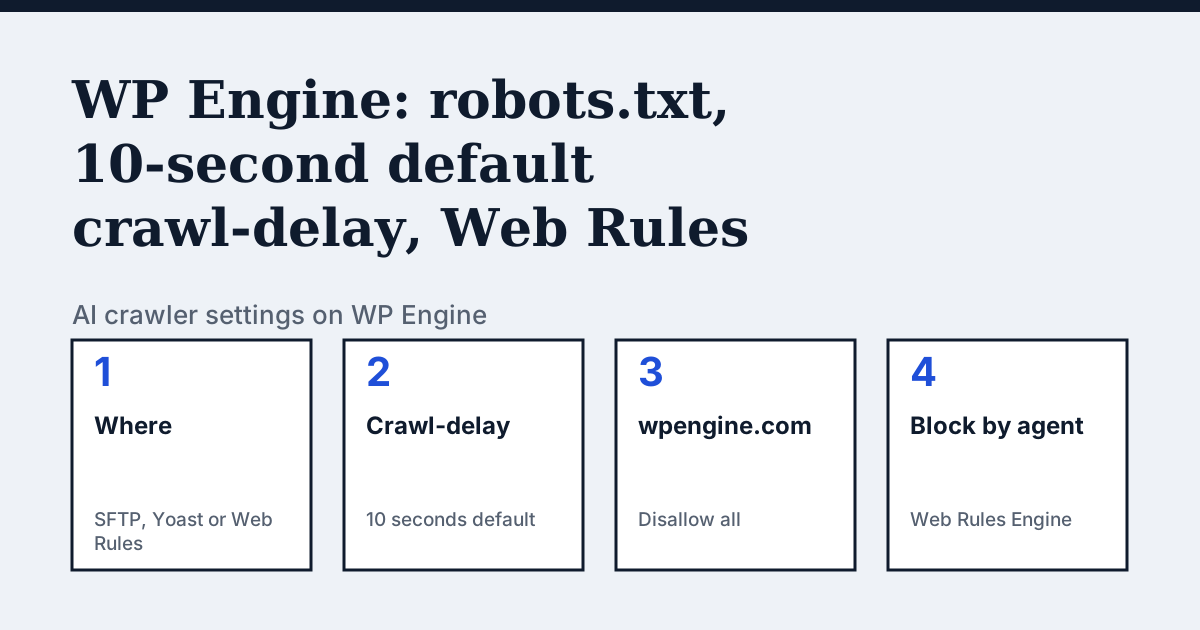
Where the setting is on WP Engine
WP Engine's page gives two ways to make the file. With the Yoast SEO plugin installed, go to SEO, then Tools, choose the file editor and select Create robots.txt file. Or create a robots.txt file yourself and upload it with SFTP or the SSH Gateway to the root directory of your site. For blocking by user agent, the page sends you to access rules in the Web Rules Engine in the User Portal.
The one thing WP Engine's page says that the other platforms do not
WP Engine ships a default robots.txt, and the page says what is in it. Its note says the default crawl-delay for all sites is 10 seconds, and any environment on a wpengine.com address gets a file that disallows everything, to stop a site being indexed on the wrong domain before launch. Only environments using a custom domain will see changes made to robots.txt. A physical file you upload also takes priority over a file made by a plugin or theme.
In the vendor's words: “This is what’s in the server’s default robots.txt file and can be overridden when you add a custom robots.txt file with one of the methods outlined in this article.”
Source: WP Engine Support: Robots.txt and WordPress, read on 24 October 2026.
The steps
- Create a file named robots.txt. The name must be lowercase and the extension .txt, not .html.
- Add your directives and save. For a plugin route instead, use Yoast SEO, Tools, then Create robots.txt file.
- Upload the file with SFTP or the SSH Gateway to the root directory of your site.
- Open /robots.txt on your live custom domain to check it. A copy on a wpengine.com address will not show your changes.
- To deny a bot at the server instead, open the Sites page in the User Portal, select the environment, click Web Rules in the secondary left menu (you may have to expand Advanced), choose Access rules and click Add Rule.
- Set Action to Deny, IP to All, and add a condition with Type Header, Name User-Agent, Operator Regex matches (~) and the user agent name as Value. Click Add Rule to save.
The lines to use
To allow:
User-agent: OAI-SearchBot
Allow: /

User-agent: PerplexityBot
Allow: /
To block:
User-agent: GPTBot
Disallow: /

User-agent: ClaudeBot
Disallow: /
WP Engine's page says directive values are case-sensitive and that globbing and regular expressions are not fully supported in robots.txt.
Gotchas
The page names no AI crawlers: its examples use BadBotName, Googlebot, bingbot and SEMrush. It also says robots do not have to follow robots.txt, and recommends a firewall such as Sucuri WAF or Cloudflare, or contacting Support, to stop bad actors before they reach the site. A request denied by a Web Rules access rule gets a 403 Forbidden response and is not counted towards billable visits, per the Web Rules Engine page. Your custom robots.txt overrides the default file, including its 10-second crawl-delay line, so add a Crawl-delay line yourself if you want to keep one.
Compare with WordPress.com
WordPress.com: An AI opt-out in privacy settings rather than a robots.txt file you write.
Check your own site
The free check in the box above reads robots.txt for the AI crawlers and sends one live request per crawler, so a rule that your platform's settings allow but a firewall refuses shows up. The full list of crawlers is on the AI crawler hub.
Questions people ask
Why does my staging site on WP Engine ignore my robots.txt?
WP Engine says sites on an environment.wpengine.com address get a disallow-all robots.txt automatically, and only environments with a custom domain see changes to the file. Shared accounts can add a custom domain only to Production, so Staging and Development usually will not show your edits.
Does a robots.txt plugin override a file I upload to WP Engine?
No, the other way round. WP Engine says a physical robots.txt in the root of your site overwrites any dynamically generated file created by a plugin or theme.
Sources
- WP Engine Support: Robots.txt and WordPress, read 24 October 2026
- WP Engine Support: Web Rules Engine, read 24 October 2026
See what AI answers about your shop
The audit crawls your site up to your plan's page limit, shows which AI crawlers it lets in and gives the exact fix for each issue. From €9, 14-day money-back guarantee.
Audit my siteAudit from €9, paid once. 14-day money-back guarantee.