Guides / Bing and Copilot
How to set up Bing Webmaster Tools for a new site
The six steps
- Sign in at bing.com/webmasters with a Microsoft, Google or Facebook account.
- Add the site: import it from Google Search Console, or type its address and click Add.
- Verify that you own it with the BingSiteAuth.xml file, a meta tag or a DNS record. An imported site is already verified.
- Submit your sitemap under Sitemaps, then name it in your robots.txt.
- Inspect your key pages in URL Inspection: the home page and the pages you most want found.
- Send new and changed pages through IndexNow from then on.
You are done when the site is verified, your sitemap's status reads Success on the Sitemaps page, and URL Inspection answers for your home page. Bing says reports usually show data about 48 hours after a site is added (Bing help: add and verify a site). The sections below take each step in turn.
What do you need before you start?
Three things: an account to sign in with, a way to change your site (upload a file, edit the <head>, or edit DNS records at your domain provider), and the address of your sitemap, often /sitemap.xml. Open it in your browser first. If it does not load, fix that before you add the site: the sitemap is how Bing learns about pages that nothing links to yet.
How do you add the site?
You have two ways in (Bing help: add and verify a site):
- Import from Google Search Console. Bing asks for permission to read your Search Console account, lists the verified sites in it with their sitemaps, and you pick the ones to bring over, up to 100 at a time. Ownership and sitemaps come with them. Bing checks your Search Console account again from time to time and imports any new sitemap it finds there.
- Add your site manually. Type the address in the box and click Add. You can add a whole domain (
example.com) or one section of it (example.com/blog/). Then verify it.
If you already have sites in the account, add a new one from the site menu on the left.
How do you verify a site by hand?
Bing shows the methods your domain supports. Pick one and follow the screen (Bing help: add and verify a site):
- XML file. Download
BingSiteAuth.xmland upload it to the root of the site, so it opens atyourdomain.com/BingSiteAuth.xml. In a Next.js or Vite project, put it in thepublicfolder, which is served from the root (Next.js docs, Vite docs). - Meta tag. Copy the
<meta name="msvalidate.01" …>tag Bing shows and paste it at the end of the<head>of your home page, then publish. - CNAME record. At your domain provider, add the CNAME record with the code Bing gives you.
- DNS auto verification. Shown only if your DNS provider supports Domain Connect: you log in to the provider when asked and Bing adds the record for you.
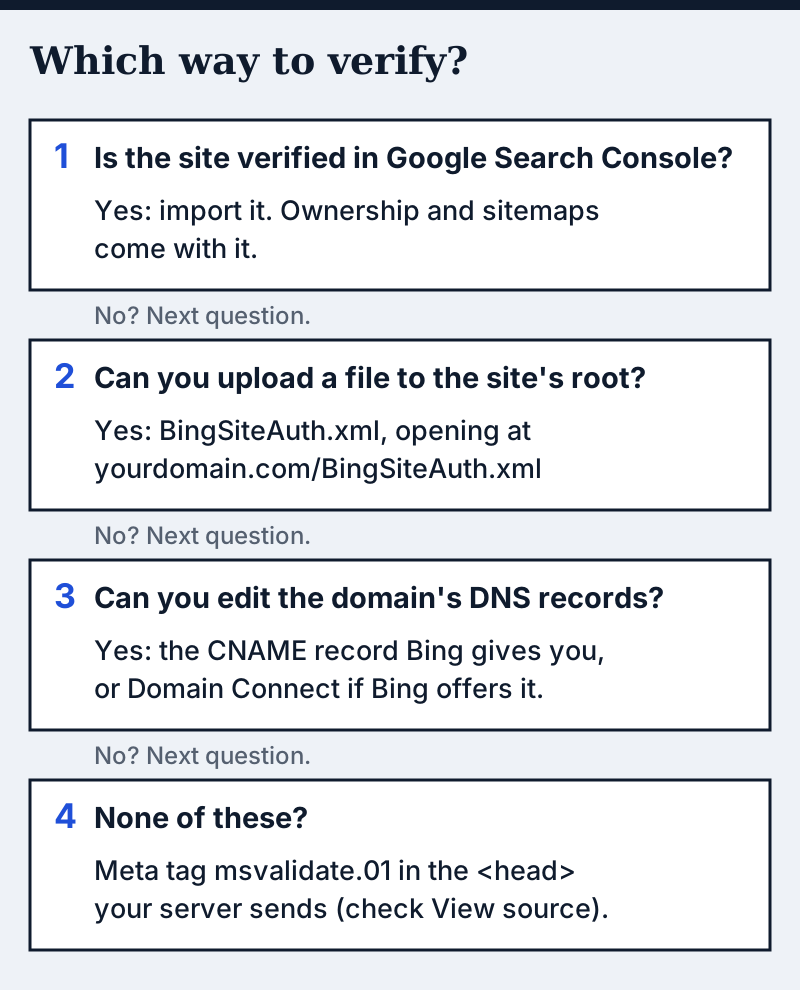
Then finish the on-screen step to verify. If verification fails, check the method you chose:
- the file opens in a private browser window at exactly
/BingSiteAuth.xmlon the address you added (with or withoutwww, as you typed it); - the meta tag is in the HTML your server sends: open the page, choose View source, and search for
msvalidate.01. If it is missing there, switch to the file or the DNS record; - the DNS record is saved at the provider that actually serves your domain. If Bing does not see it yet, wait and try verifying again.
Leave the file, tag or record in place after verifying.
How do you submit the sitemap?
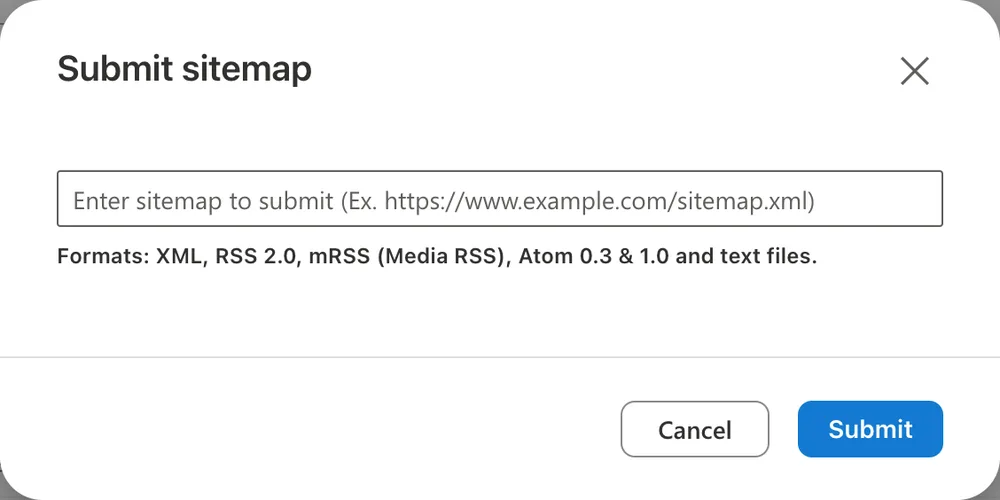
Open Sitemaps in the left menu and click Submit sitemap at the top right. Paste the full address, for example https://yourdomain.com/sitemap.xml, and click Submit. The dialog lists the formats it accepts: XML, RSS 2.0, mRSS, Atom 0.3 and 1.0, and text files with one URL per line.
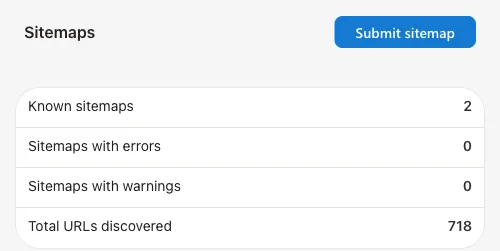
The table then shows each sitemap's last submit and crawl dates, its status and how many URLs Bing found in it. Click a sitemap to see the exact error or warning to fix (Bing help: Sitemaps).
Also add one line to your robots.txt so Bing finds the sitemap by itself:
Sitemap: https://example.com/sitemap.xmlList only addresses you want in search: pages that answer 200, carry no noindex and name themselves as canonical.
How do you check whether a page is indexed?
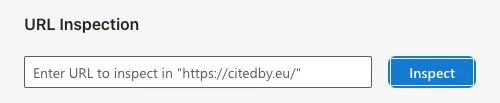
Open URL Inspection, paste the address and click Inspect. It shows whether the page is in Bing's index and when Bing discovered, crawled and indexed it, and its Live Check tests whether Bingbot can crawl the page now (Bing Webmaster Blog).
From outside the tool, a search for url: followed by the address shows whether Bing returns it (Bing help: why is my site not in the index?).
Submit URLs sends addresses one per line. The quota is 10,000 URLs per domain per day and resets at midnight UTC. Submitting the same address again does not speed it up (Bing help: URL submission).
Why is a new page not in Bing yet?
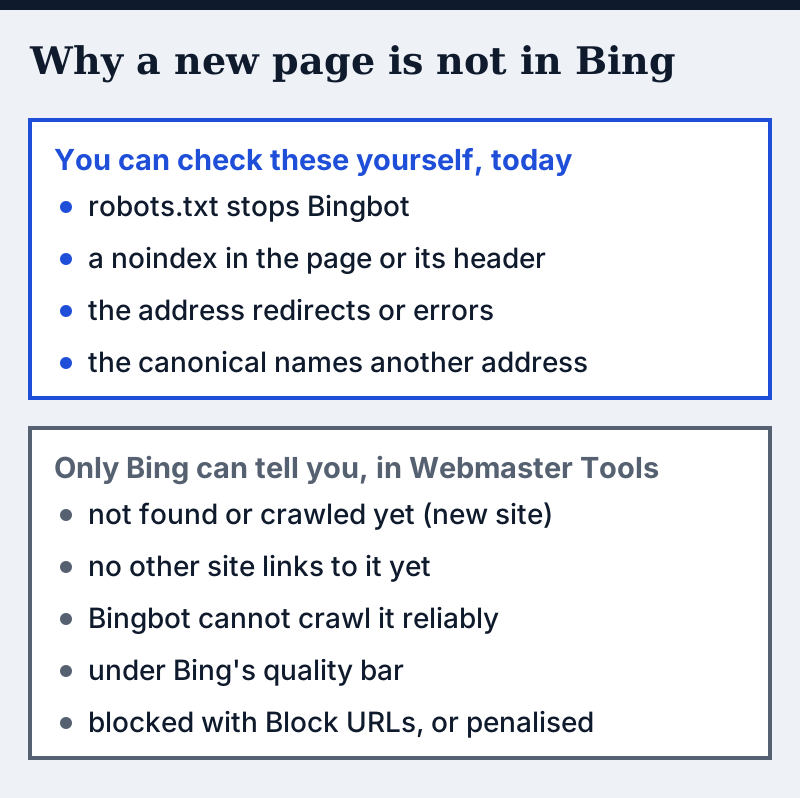
Bing's help lists these reasons (Bing help: why is my site not in the index?):
- The site is new. Bing still has to find links to it and crawl it, even after you submit a sitemap or URLs.
- No other site links to it. Bing needs at least one link pointing at your site to find it, and prefers a few from quality sites.
- Bingbot cannot crawl it reliably. URL Inspection shows whether Bingbot can fetch your home page and other pages.
- robots.txt stops Bingbot.
- The page carries a noindex robots meta tag.
- You blocked the address with the Block URLs tool in your own account.
- The content falls under Bing's quality bar, for example copied text, a page that quickly redirects visitors, or very thin pages.
- The site was penalised or carries malware. Bing alerts owners in Webmaster Tools when it detects malware.
Two of them you can check from outside before Bing crawls anything: the robots.txt rule and the noindex. Check two more while you are there, though they are not on Bing's list: a page that redirects or answers with an error, and a canonical tag that asks Bing to index another address instead. Our free Bing index check reads them for up to 10 of your URLs, plus your sitemap and whether a verification file or tag is on the site. Whether a page is actually in Bing's index only Bing can show: URL Inspection, or the url: search above.
How do you tell Bing about new and changed pages?
Use IndexNow. Bing's help calls it the strongly recommended way to submit URLs and says manual submission and its API may be deprecated later (Bing help: URL submission). By hand, it works like this (IndexNow documentation):
- Make your own key: 8 to 128 characters, only letters, numbers and dashes. Do not copy the example below; anyone who knows your key can submit URLs for your site.
- Publish a text file named after the key at the root of your site, containing only the key, for example
https://example.com/YOURKEY.txt. Open it in a browser: it must show the key and nothing else. - When a page is added, changed or deleted, request this address once, with the page address URL-encoded:
https://api.indexnow.org/indexnow?url=https%3A%2F%2Fexample.com%2Fpage&key=YOURKEYThe answer code tells you what happened (IndexNow documentation):
| Code | Meaning |
|---|---|
| 200 | URL received |
| 202 | URL received, the key is still being checked |
| 403 | key not valid: the file is missing or does not hold the key |
| 422 | the URL is not on your host, or the key does not fit the format |
| 429 | too many requests |
One request reaches every engine in the protocol; the FAQ lists Amazon, Bing, Naver, Seznam.cz, Yandex and Yep, and Google is not among them (IndexNow FAQ). Many CMS plugins and CDNs send IndexNow for you, so check yours before you build it. The IndexNow tab in Webmaster Tools shows what arrived.
Send only addresses whose content changed. A ping tells the engine that something changed; it still decides what to crawl and index.
What is worth opening once the site is in?
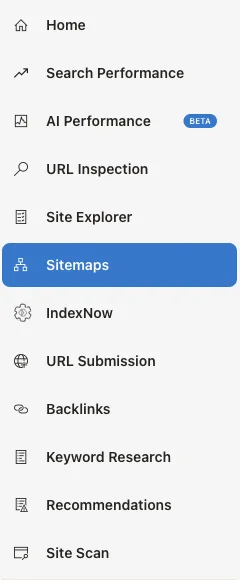
- Search Performance: the queries and pages that bring you Bing impressions and clicks, with up to 16 months of history (Bing Webmaster Blog).
- AI Performance: how often Microsoft Copilot and Bing's AI summaries cite your pages, with a sample of the grounding queries behind those citations. It has been in public preview since February 2026 and is marked Beta in the menu (Bing Webmaster Blog). Our guide shows how to download that report.
- robots.txt tester: test an address against your robots.txt as Bingbot reads it (Bing Webmaster Blog).
- Site Scan: an on-demand crawl of your own site that sorts technical SEO issues into errors, warnings and notices (Bing help: Site Scan).
Questions people ask
Is Bing Webmaster Tools free?
Yes. You sign in with a Microsoft, Google or Facebook account and add sites you can verify, up to 1,000 per account.
Do I need it if I already use Google Search Console?
Yes, if you want Bing's own data: how Bing crawls and indexes your site and what it sends you is reported in Bing Webmaster Tools. Microsoft also documents that Microsoft Copilot and Copilot Chat send the web searches they make to Bing (Microsoft Learn).
Which verification method should I pick?
Import from Search Console if the site is there. Otherwise the XML file when you can upload files, and the DNS record when you cannot. Use the meta tag only when you control the HTML your server sends.
How long until Bing shows data?
Bing says reports usually fill in about 48 hours after you add a site. Indexing a new site can take longer: Bing has to find links to it and crawl it first.
Sources
- Bing help: add and verify a site
- Bing help: Sitemaps
- Bing help: URL submission
- Bing help: why is my site not in the index?
- Bing help: Site Scan
- Start using Bing Webmaster Tools to improve your site visibility (sign-in accounts)
- Introducing the URL Inspection tool
- The robots.txt tester
- Search Performance extended to 16 months
- Introducing AI Performance in Bing Webmaster Tools
- IndexNow documentation and FAQ
- Microsoft Learn: Copilot and web search
Check what Bing will find before it crawls
Type your domain. We read your robots.txt and sitemap and check up to 10 of your URLs for what stops Bingbot: a block, a noindex, a redirect or a canonical that points elsewhere.
Check my site for BingResult in seconds. No account, no card.